.png?width=220&height=110&name=Copy%20of%20Digital%20Chew%20(Blog%20Banner).png)
Step 1: Access the Talent Roster
- Log in to your Project Casting account.
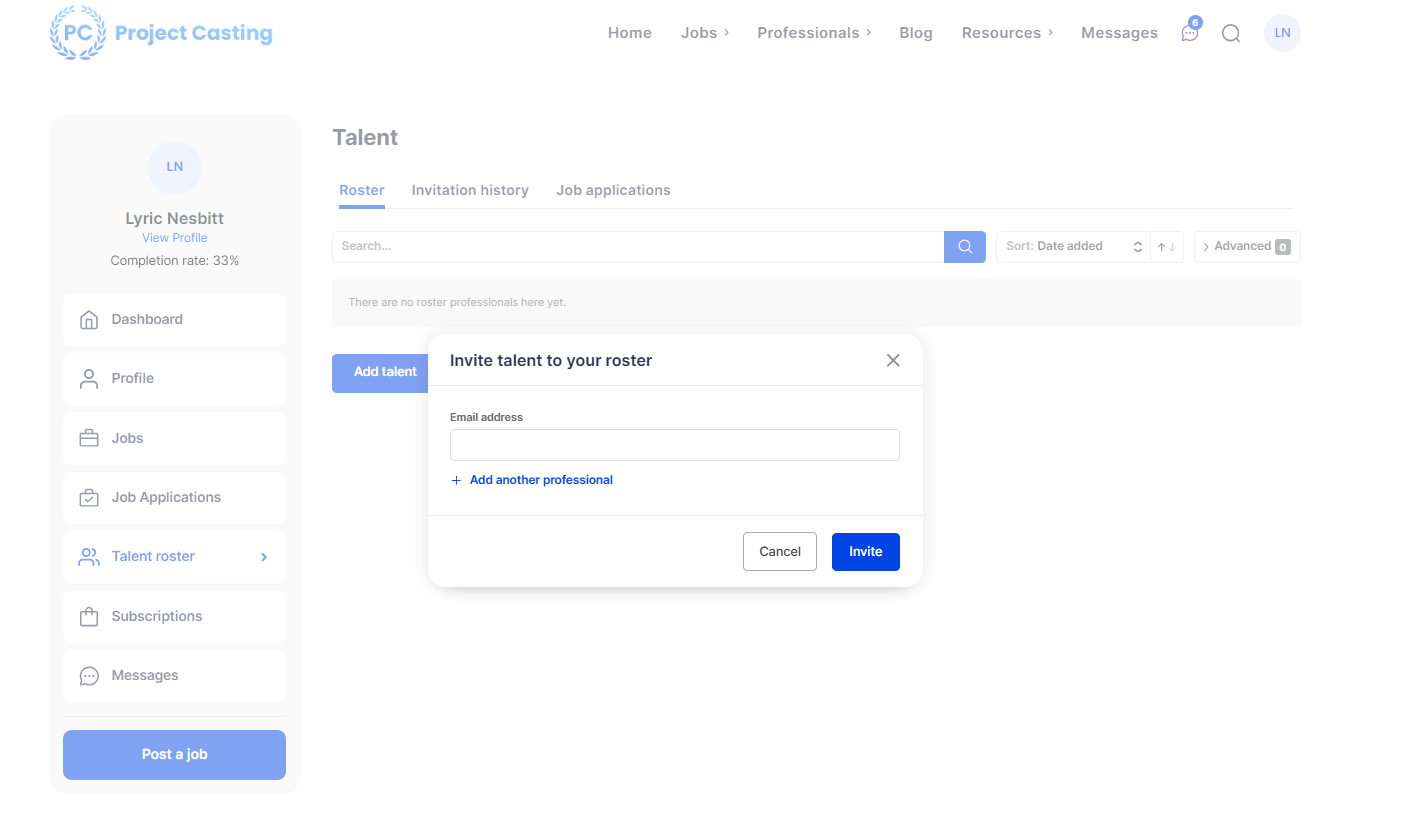
- From the dashboard, click on “Talent roster.”
- You will see a new Roster tab available once your agency is approved.
Step 2: Add Talent
- Click the “Add talent” button.
- Enter the email address of the talent you want to add.
- To add more than one person, click “Add another professional.”
Step 3: Send Invitations
Click “Invite” to send invitations to the selected talent.
What Happens Next?
• Existing Project Casting Users:
The talent will be added to your roster instantly. They will also receive an email notification.
• New Users (Not on Project Casting):
They will receive an email invitation to register on Project Casting. Once they sign up, they can be added to your roster.
Step 4: Manage Invitations
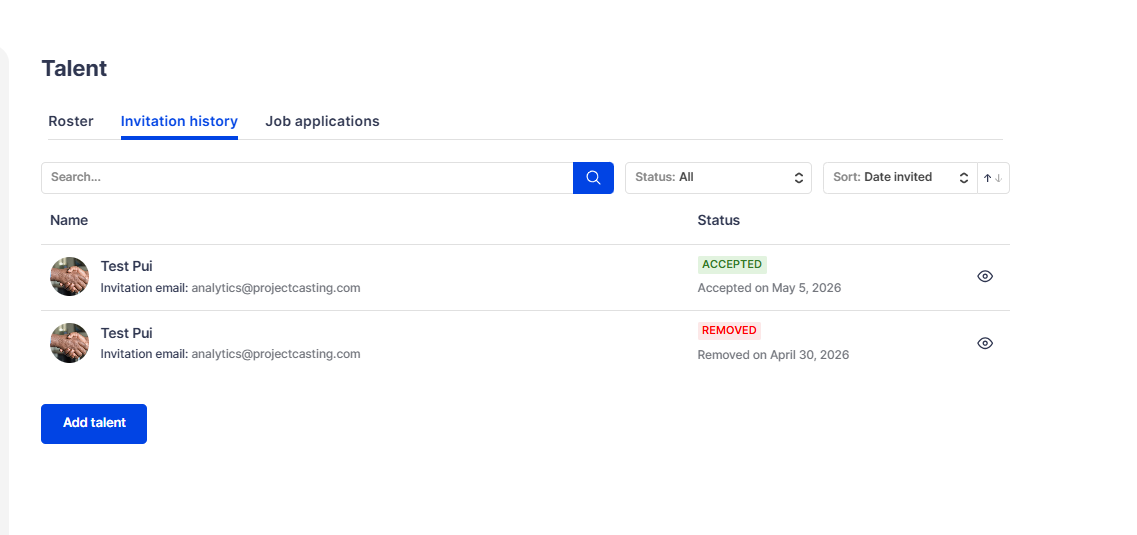
• Go to the “Invitation history” tab to track all invitations.
• View the status of each invite (pending, accepted, removed.).
Tips
• You can invite multiple talents at once.
• Make sure you enter the correct email addresses to avoid delays.
Summary
After being approved as a Talent Agency, use the Talent Roster feature to invite and manage talent. Existing users are added instantly, while new users receive an invitation to join.