.png?width=220&height=110&name=Copy%20of%20Digital%20Chew%20(Blog%20Banner).png)
How to check your notifications
- Sign in to your Project Casting account.
- Click the bell icon 🔔 in the top navigation.
- A notification menu will appear showing your most recent updates.
- Click View all notifications at the bottom of the menu.
- You'll be taken to the Notifications page, where you can review all of your notifications.
If you have unread notifications, a number will appear on the bell icon showing how many new updates are waiting for you.

What can I do from the Notifications page?
From the Notifications page, you can review your latest activity and take action directly from each notification.
Depending on the notification, you may see options such as:
- Reply — Open the conversation and respond to a message.
- Message company — Contact the casting company associated with the update.
- Mark as read — Mark an individual notification as read.
- Mark all as read — Mark all unread notifications as read at once.
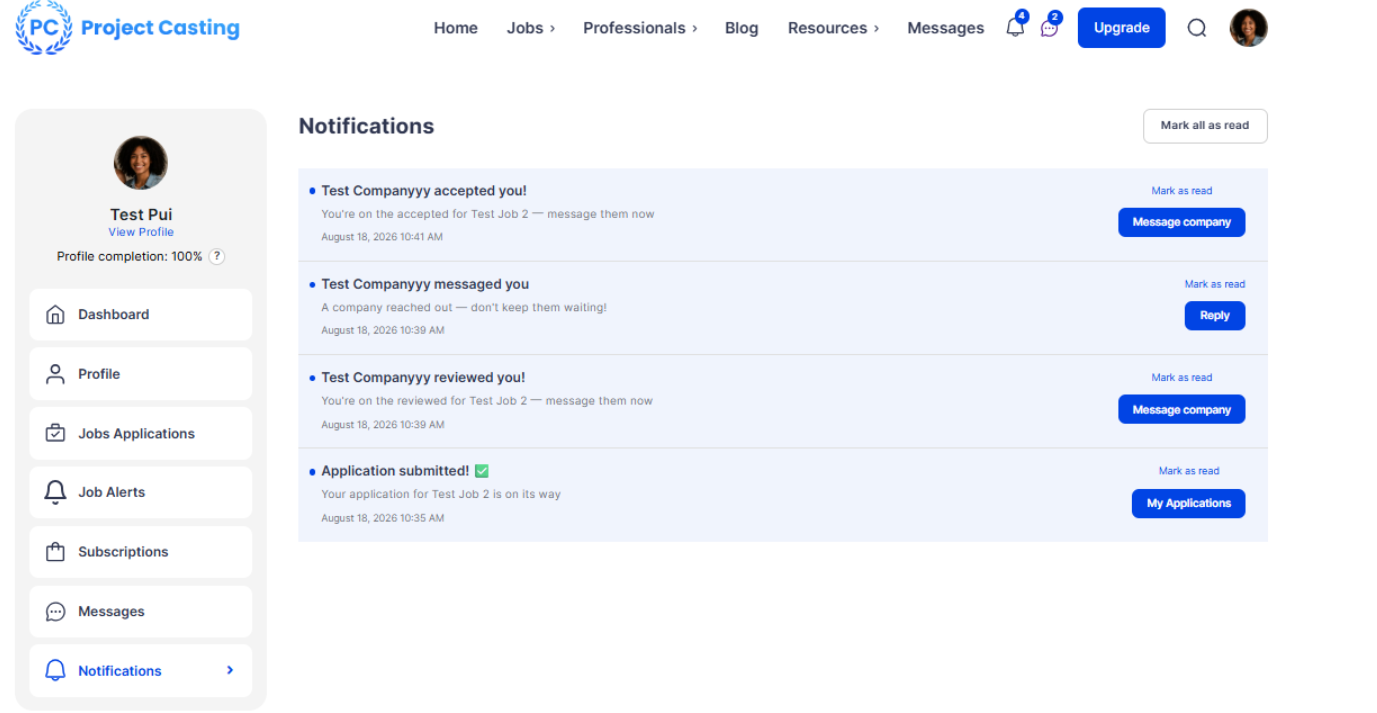
You may receive notifications when:
- A casting company sends you a message.
- A company reviews you for a role.
- A company accepts you for an opportunity.
- A company invites you to a job.
- You successfully submit an application.
- You receive other important job, message, or account updates.
Stay up to date
Check the bell icon 🔔 regularly so you don't miss important messages, casting opportunities, or application updates.