.png?width=220&height=110&name=Copy%20of%20Digital%20Chew%20(Blog%20Banner).png)
Step 1: Go to Your Talent Roster
- Log in to your Project Casting account.
- Navigate to “Talent roster” from your dashboard.
Step 2: Select the Talent to Remove
- Find the talent you want to remove from your roster.
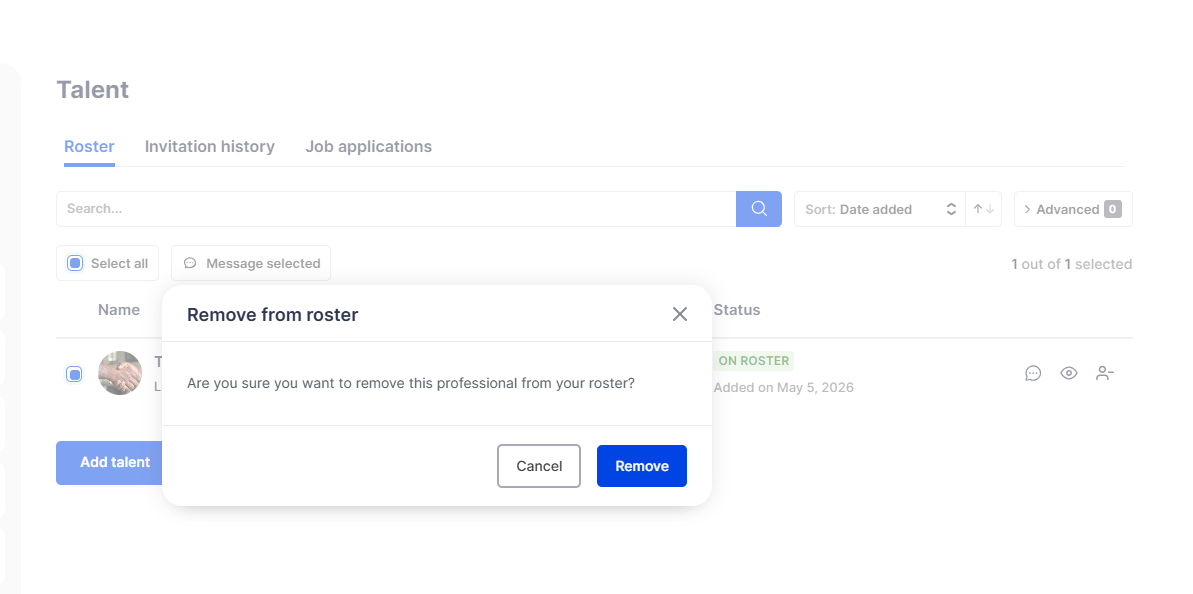
- Locate the remove icon (person with a minus sign) on the right side of their profile.
Step 3: Confirm Removal
- Click the remove icon.
- A confirmation popup will appear.
- Click “Remove” to confirm, or “Cancel” to keep the talent on your roster.
Step 4: View Removal History
• You can track all removals in the “Invitation history” tab.
• This includes past invitations and removal records.
Tips
• Removing a talent will take them off your active roster immediately.
• Make sure you select the correct talent before confirming.
Summary
To remove talent, click the remove icon, confirm the action, and manage records in your Invitation History.