.png?width=220&height=110&name=Copy%20of%20Digital%20Chew%20(Blog%20Banner).png)
Step 1: Open the Job Applicants Page
Log in to your Company Account and go to the Job Applicants section.
From this page, you can view all submissions connected to your active job postings.
At the top of the page, you will see search, sorting, and filtering tools to help you find applicants quickly.
Step 2: Use Applicant Status Tabs
The applicant list is organized by status so you can manage submissions more efficiently.
You can view applicants by categories such as Invited, Recommended, All, New, Reviewed, Interviewed, Accepted, and Rejected.
These tabs help you move between different stages of your hiring process.
Step 3: Use Advanced Applicant Filters
The Job Applicants page includes improved filtering tools to help you narrow down submissions faster.
You can filter applicants by job, ranking, location, ethnicity, gender, skill, hair color, eye color, age, followers, weight, and height.
These filters make it easier to find applicants who match specific casting requirements or production needs.
For example, if a role requires a certain location, skill, or physical detail, you can apply filters to focus on the most relevant submissions.
Use these filters together with the applicant status tabs to manage large applicant pools more efficiently.
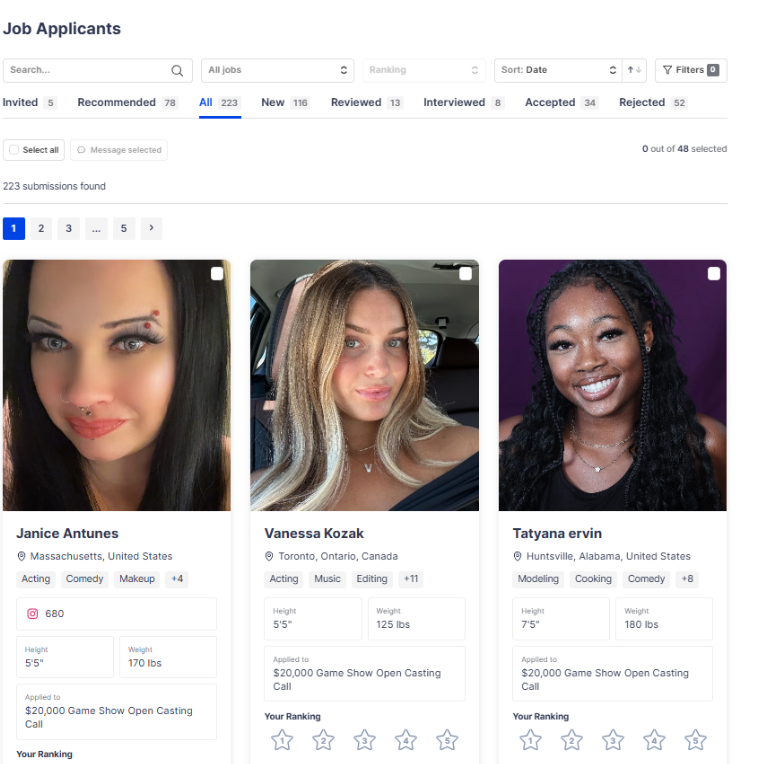
Step 4: Review Applicant Cards
Each applicant appears as a visual card, allowing you to see their profile image right away.
Applicant cards may include their name, location, skills, height, weight, the job they applied to, and other useful profile information.
This layout helps you compare applicants faster without opening every profile individually.
Step 5: Rank Applicants
You can rank applicants from 1 to 5 stars based on how well they fit the role.
Ranking applicants helps you organize stronger candidates and return to them later.
After ranking submissions, you can use filters to narrow down applicants and focus on the best matches for your job.
Step 6: Open Applicant Details
Click on an applicant to view their full submission details.
The applicant detail page includes more information about the talent, including their profile summary, photos, skills, contact information, demographics, application details, and submission status.
This gives you a more complete view of each applicant before making a decision.
Step 7: Manage Applicant Status
From the applicant detail page, you can update the applicant’s status as they move through your review process.
For example, you can mark an applicant as reviewed, interviewed, accepted, or rejected.
Keeping statuses updated helps your team stay organized and makes it easier to track hiring progress.
Step 8: Add Notes and Take Action
You can add internal notes to an applicant’s profile to keep track of important details.
You can also message the applicant directly, view the job they applied to, or reject the submission if they are not the right fit.
These tools help you manage communication and decisions directly from the applicant profile.
Tips for Reviewing Applicants
Review applicant photos, skills, and profile details carefully before making a decision.
Use the star ranking system to organize top candidates.
Update applicant statuses regularly so your hiring workflow stays clear and organized.
Use filters to quickly find applicants by job, status, ranking, location, skill, or review stage.
Need Assistance?
If you have any questions or need help managing job applicants, please contact the Project Casting support team for assistance.