How to Upgrade Your Company Account on Project Casting
Follow the steps below to upgrade your account on Project Casting.
Step 1: Log In
-
Go to projectcasting.com/login
-
Log in using the email address you used to register your company account.
-
If you’re unsure, it will be the email where you receive job applicant notifications.
-
-
Enter the 2FA (two-factor authentication) code sent to your email to complete the login process.
Go to projectcasting.com/login
Log in using the email address you used to register your company account.
If you’re unsure, it will be the email where you receive job applicant notifications.
If you’re unsure, it will be the email where you receive job applicant notifications.
Enter the 2FA (two-factor authentication) code sent to your email to complete the login process.
Step 2: Access Your Dashboard
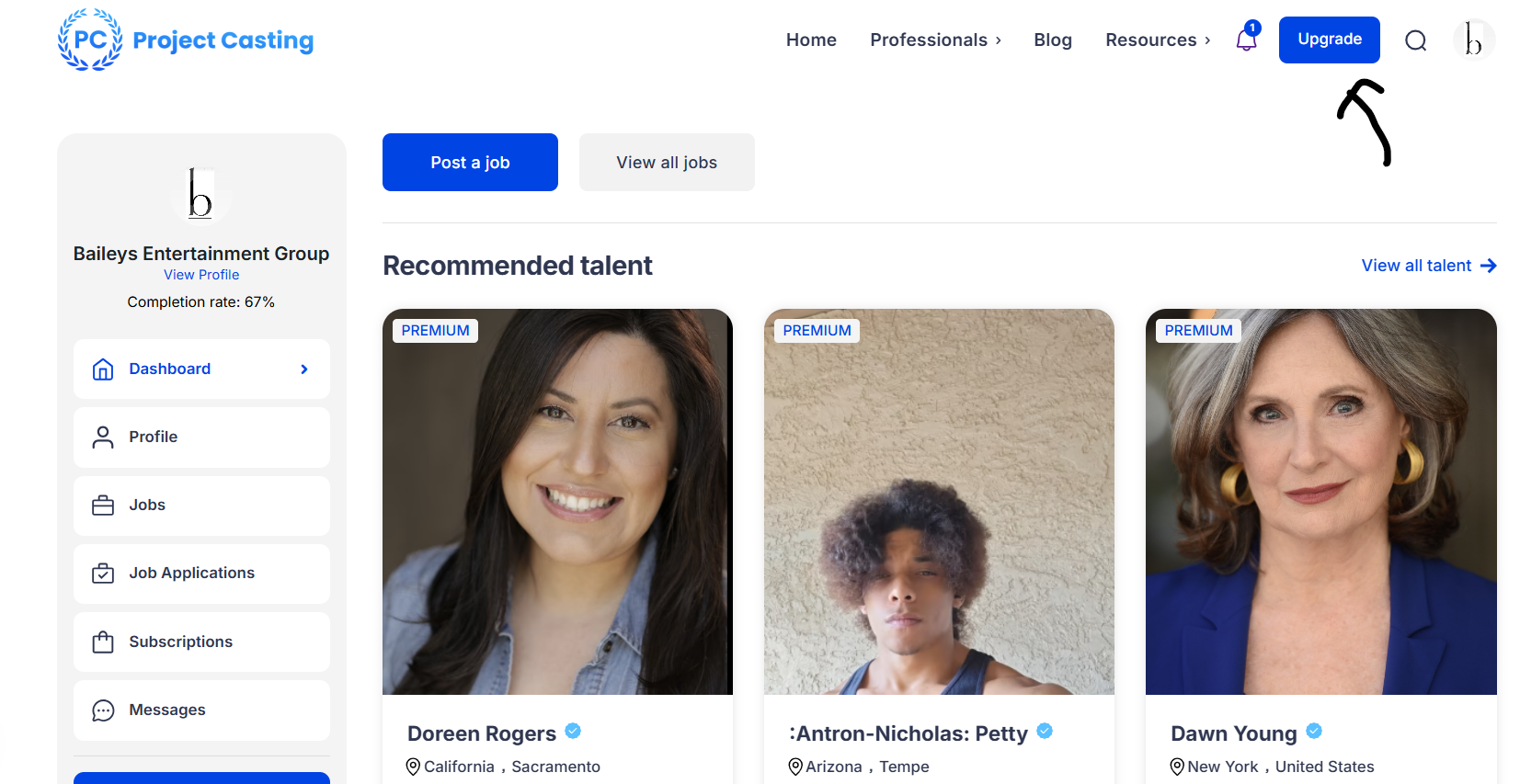
Once you log in, you’ll be directed to your company Dashboard.
-
From there, click the Upgrade button in the top right corner of the screen.
-
Alternatively, visit this direct link after logging in: projectcasting.com/upgrade
From there, click the Upgrade button in the top right corner of the screen.
Alternatively, visit this direct link after logging in: projectcasting.com/upgrade
Step 3: Choose Your Upgrade Plan
On the upgrade page:
-
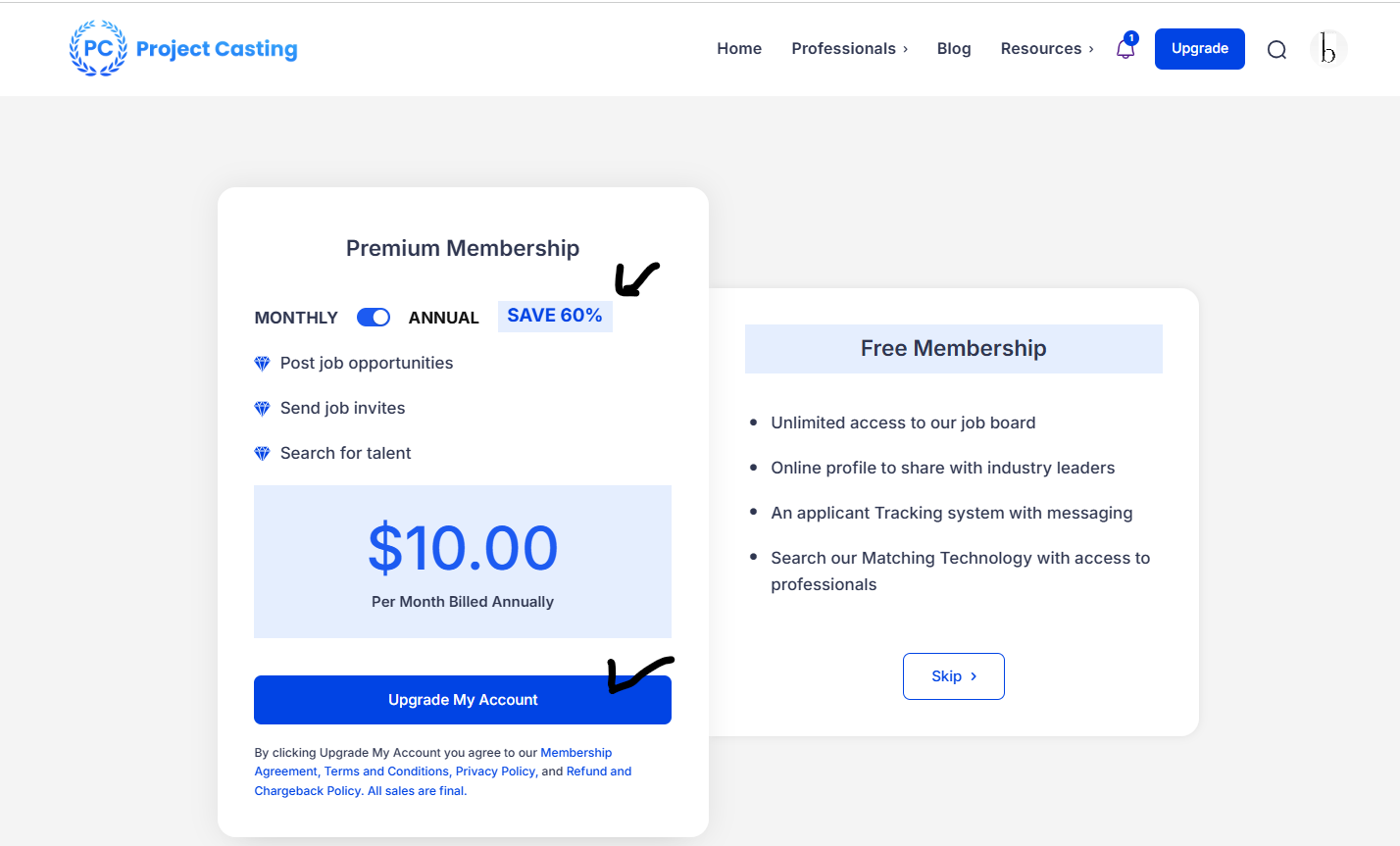
Make sure Annual Plan is selected (this is the default).
-
The annual plan gives you the best value with savings built in.
-
Click the blue Upgrade My Account button to proceed.
Make sure Annual Plan is selected (this is the default).
The annual plan gives you the best value with savings built in.
Click the blue Upgrade My Account button to proceed.
Step 4: Checkout
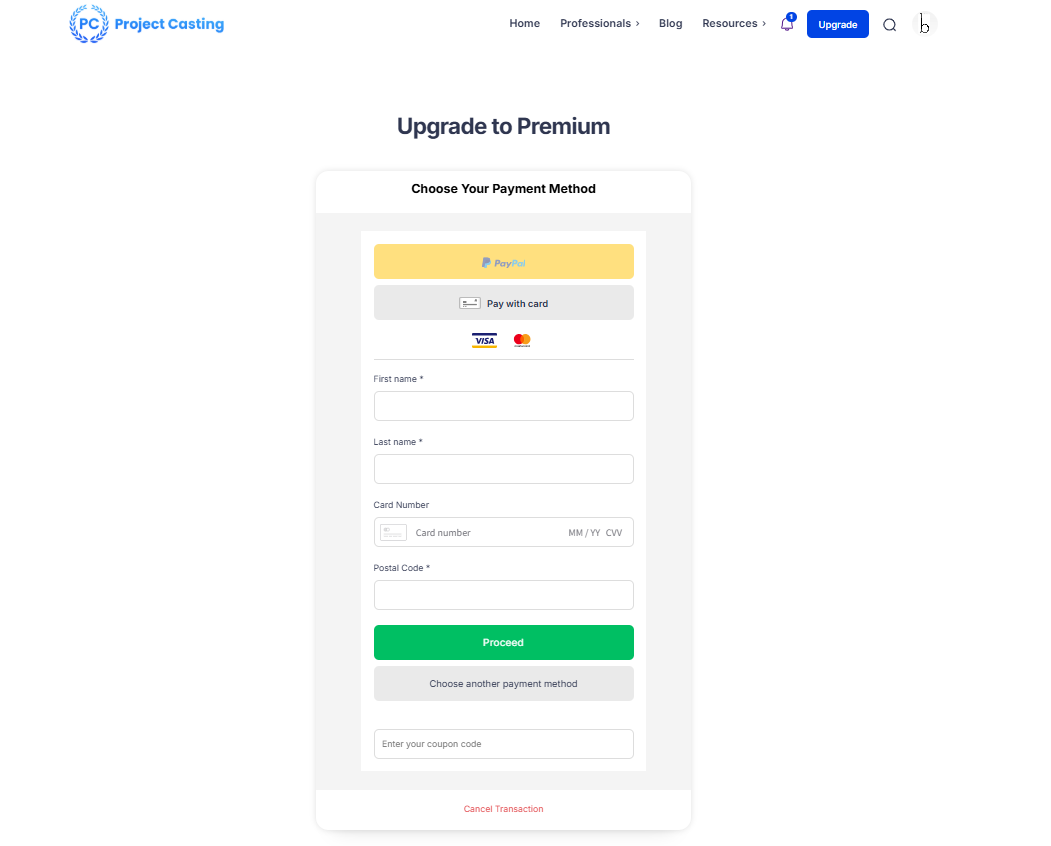
On the checkout page, you’ll be able to select your payment method:
-
Choose either PayPal or Credit Card
-
Enter your details and click Proceed
-
Stay on the page while your payment processes
-
Once successful, you’ll be redirected to a confirmation page
Choose either PayPal or Credit Card
Enter your details and click Proceed
Stay on the page while your payment processes
Once successful, you’ll be redirected to a confirmation page
Step 5: View and Manage Your Subscription
Once your upgrade is complete, you’ll see your active subscription under the Subscriptions tab on the Dashboard.
-
You can return here anytime to review or manage your subscription.
You can return here anytime to review or manage your subscription.
Need Help?
If you encounter any issues or need assistance during the upgrade process, feel free to contact our support team at support@projectcasting.com.