New Messaging Features on Project Casting
Who can send messages?
-
Premium Professional Members: Only users with a Premium Professional membership can initiate a message with other members. This feature is designed to help professionals connect more efficiently, ensuring that communication is purposeful and meaningful within the community.
-
Companies and Casting Directors: If you are a company or casting agent, you can message talent after posting a job. Once your job post is live, you’ll have access to message talents, allowing for direct communication and faster project fulfillment.
Premium Professional Members: Only users with a Premium Professional membership can initiate a message with other members. This feature is designed to help professionals connect more efficiently, ensuring that communication is purposeful and meaningful within the community.
Companies and Casting Directors: If you are a company or casting agent, you can message talent after posting a job. Once your job post is live, you’ll have access to message talents, allowing for direct communication and faster project fulfillment.
How do I message a talent?
To message a talent, follow these steps:
-
Navigate to the Talent’s Profile: First, find the talent you wish to contact by searching or browsing through profiles.
-
Click on the “Message” Button: On the talent's profile, you’ll see a blue button labeled “Message [Talent's Name]” . Clicking this will take you directly to the messaging interface where you can start a conversation with them.

-
Compose Your Message: Once you are in the message box, you can compose and send your message. From here, you can also:
-
Edit messages: If you need to modify a message after sending, simply click on the message and choose the "Edit" option.
-
Reply to messages: Continue the conversation seamlessly by responding to any incoming messages.
-
Delete messages: If a message is no longer relevant or was sent by mistake, you have the option to delete it.
-
Navigate to the Talent’s Profile: First, find the talent you wish to contact by searching or browsing through profiles.
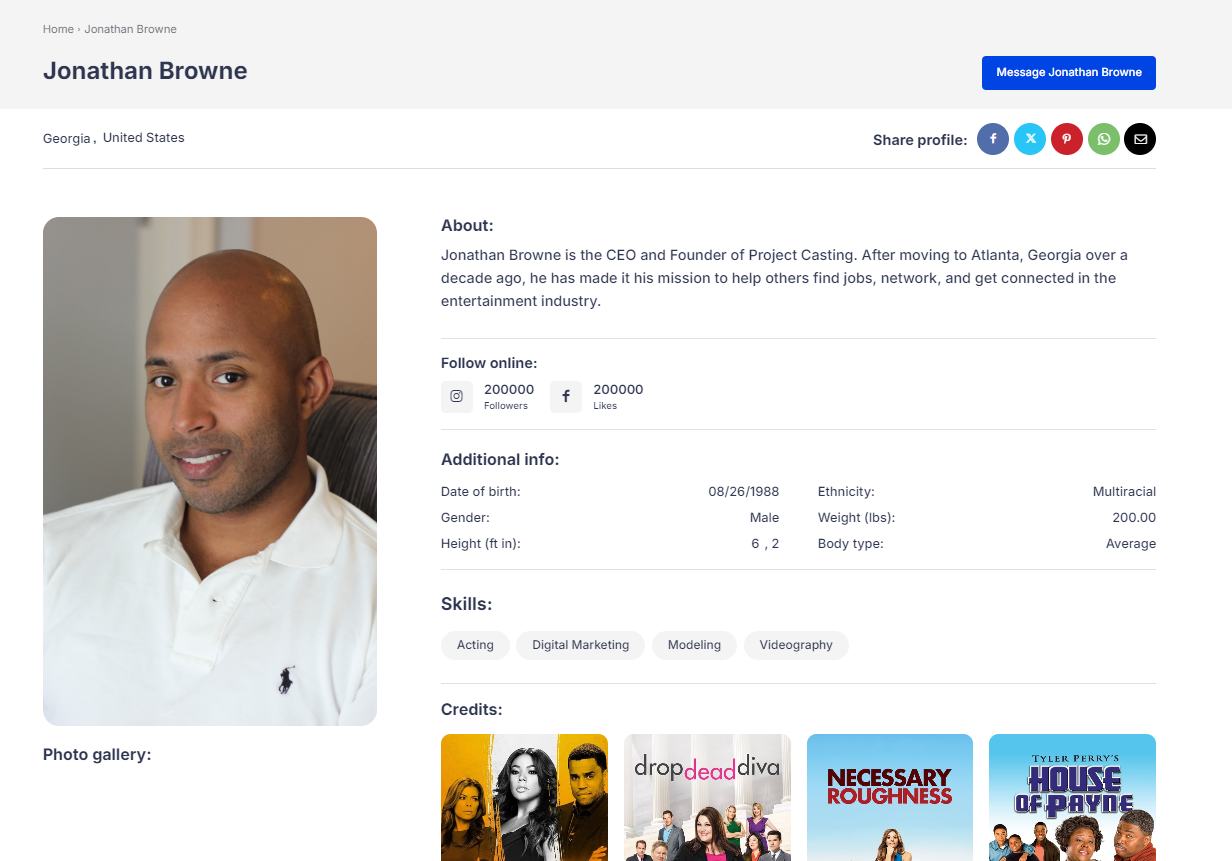
Click on the “Message” Button: On the talent's profile, you’ll see a blue button labeled “Message [Talent's Name]” . Clicking this will take you directly to the messaging interface where you can start a conversation with them.
Compose Your Message: Once you are in the message box, you can compose and send your message. From here, you can also:
Edit messages: If you need to modify a message after sending, simply click on the message and choose the "Edit" option.
Edit messages: If you need to modify a message after sending, simply click on the message and choose the "Edit" option.
Reply to messages: Continue the conversation seamlessly by responding to any incoming messages.
Reply to messages: Continue the conversation seamlessly by responding to any incoming messages.
Delete messages: If a message is no longer relevant or was sent by mistake, you have the option to delete it.
Delete messages: If a message is no longer relevant or was sent by mistake, you have the option to delete it.
Additional Features and Benefits

-
Notification System: You will receive a notification (visible on your navigation bar as shown in the image) whenever you receive a new message or a response. This ensures you never miss an important conversation.
-
Messaging History: All your messages will be stored in the message box, so you can easily refer back to previous conversations without losing any important information.
-
Mobile Accessibility: Our messaging feature is fully optimized for mobile devices, so you can send and receive messages on the go, ensuring constant connectivity to casting opportunities and talent.
Notification System: You will receive a notification (visible on your navigation bar as shown in the image) whenever you receive a new message or a response. This ensures you never miss an important conversation.
Messaging History: All your messages will be stored in the message box, so you can easily refer back to previous conversations without losing any important information.
Mobile Accessibility: Our messaging feature is fully optimized for mobile devices, so you can send and receive messages on the go, ensuring constant connectivity to casting opportunities and talent.